
Everything the app does, and where to find it.
The day-to-day of running waiting lists: the dashboard, the sign-ups, the widget, sender and sending hours, templates, analytics, several storefronts, and what to check when something looks off.
The app opens inside your BigCommerce control panel, under Apps. The first visit walks you through a short setup: widget, sender address, a test. Everything it configures can be changed later from the pages below. The left menu links to each of them, and to this guide.
Dashboard
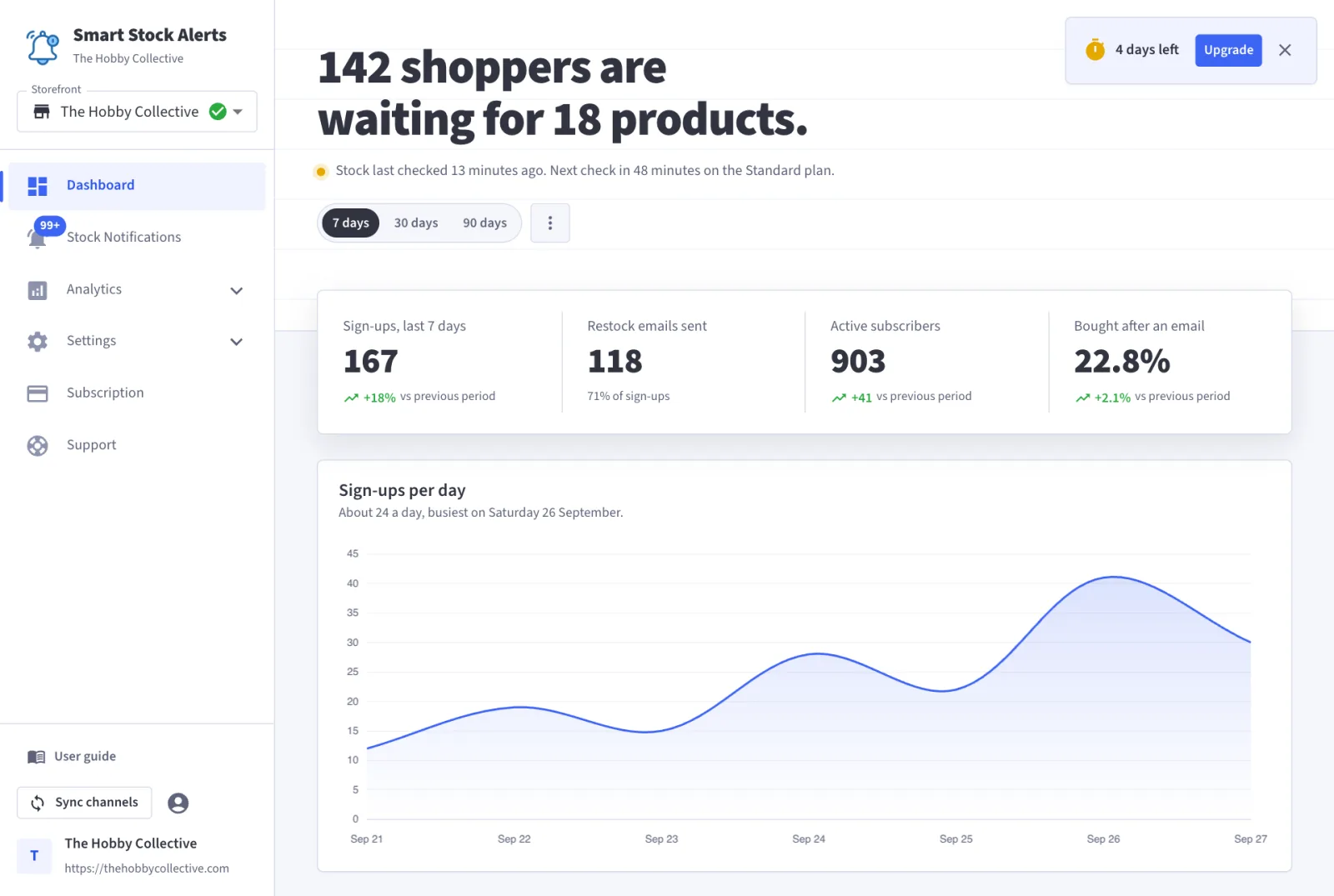
The dashboard opens on the state of your waiting list: how many shoppers are waiting, for how many products, when stock was last checked and when the next check runs. Below it, for the selected period:
- Sign-ups: shoppers who joined a waiting list.
- Restock emails sent: notifications delivered after a restock.
- Active subscribers: distinct email addresses still waiting or recently emailed.
- Bought after an email: the share of emailed shoppers who placed an order.
- Most wanted right now: the products with the longest lists, with their stock state.
- How the emails perform and what happened recently: open and click rates, and the latest sign-ups and sends.
The menu in the top-right corner downloads the period as a CSV file.
Stock notifications
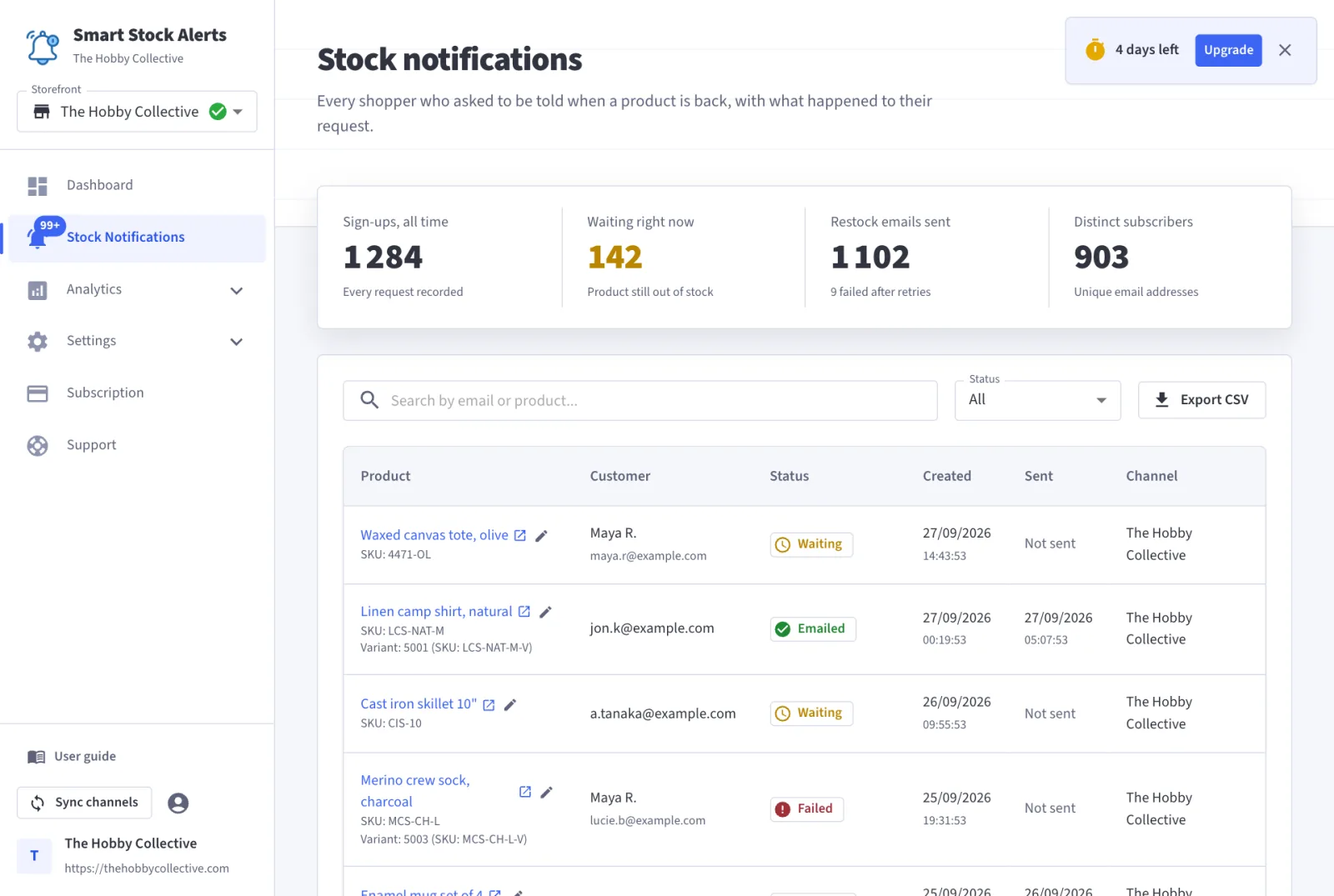
Every sign-up, newest first, with its product, customer, status and dates. The product name links to the product page on your storefront, and the pencil next to it opens the product in your BigCommerce control panel, so you can check stock or price without leaving the app.
Finding a sign-up
- Search by customer email, customer name or product name.
- Filter by status.
- Export the current list as CSV: same search, same filter, every matching row.
What the statuses mean
- Waiting: the product is still out of stock, or the next check has not run yet.
- Emailed: the restock email went out.
- Failed: the email could not be sent after five attempts. Hover the status to read the last error.
- Bounced and Unsubscribed: the shopper's mailbox rejected the email, or the shopper opted out. No further email is sent to them.
- Inactive: the sign-up is switched off: its product was removed, the monitoring period ended, or you chose to stop it.
- Product removed and Removal emailed: the product was deleted from your catalogue while shoppers were waiting, and what the app did about it (see Notification settings).
Widget
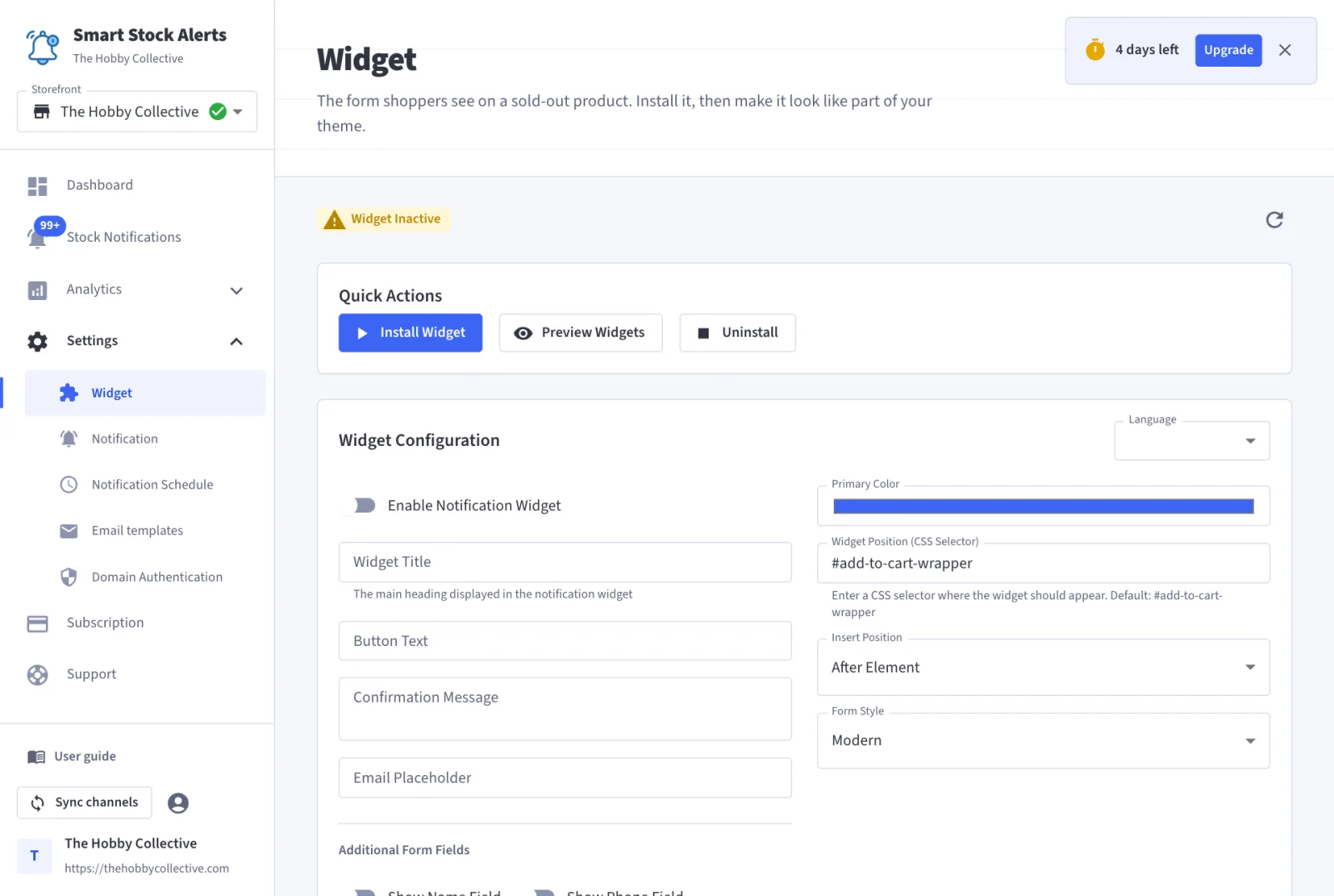
Settings, then Widget. The widget is the form shoppers see on sold-out products. The page starts with its installation state (installed and active, inactive, or not installed) and a button that installs the script into your theme through BigCommerce. No code to paste.
Wording
- Language of the built-in texts.
- Widget title, button text, confirmation message, email placeholder.
- Whether to show a name field and a phone field, each with its own placeholder.
Appearance and placement
- Primary colour, to match your theme.
- Form style: modern, classic or minimal.
- Where it goes: a CSS selector of an element on your product page (the add-to-cart wrapper by default) and whether the form is inserted before, after, or inside that element at the top or bottom.
The widget only appears when the product, or the selected variant, is out of stock. Use the Preview button to see the form as shoppers will, then save.
Notification settings
Settings, then Notification.
Sender
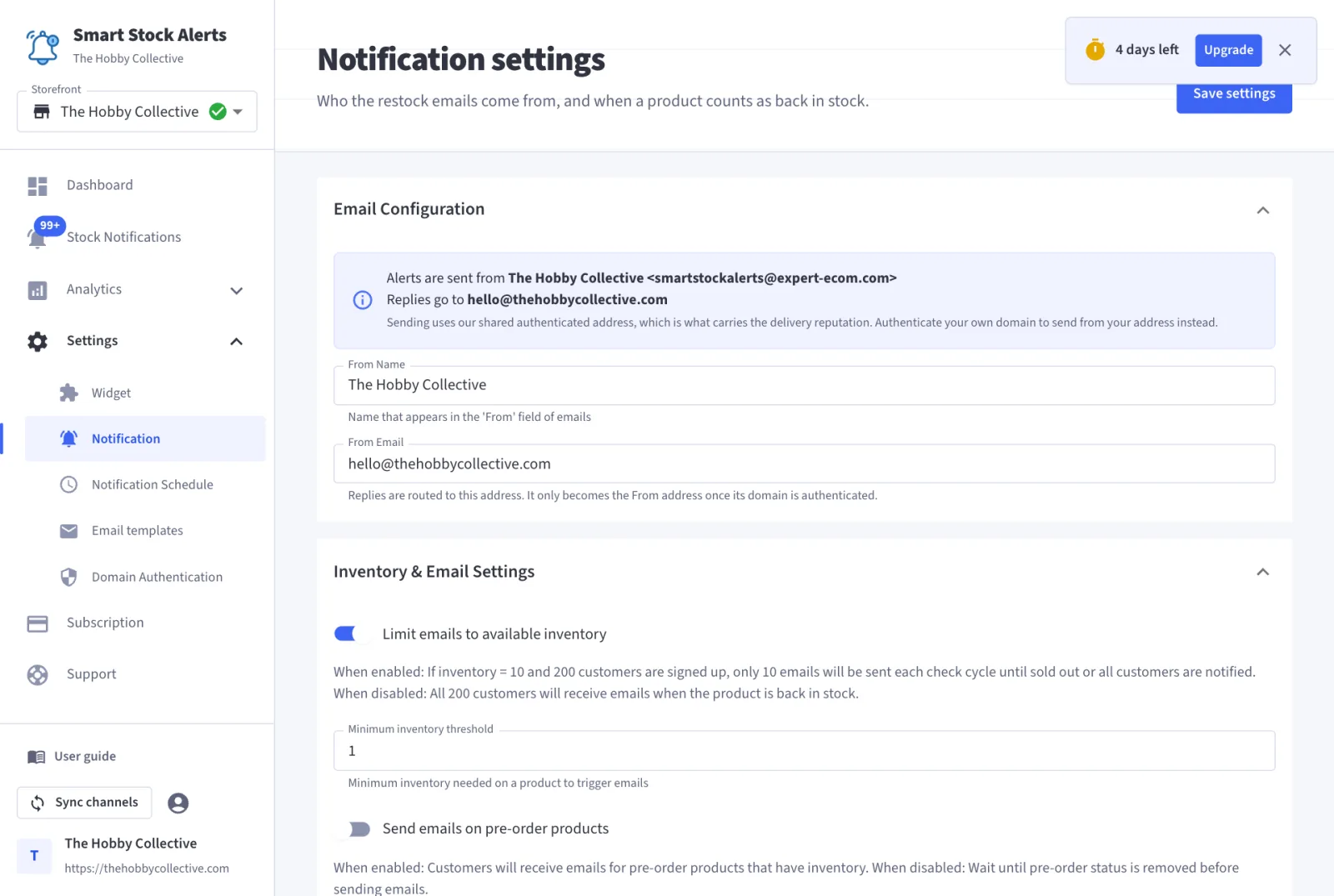
- From name: your store or brand name.
- From email: the address shoppers see and reply to. Until the domain of that address is authenticated (next section), emails leave from the app's shared address and replies are routed to your address automatically. There is nothing else to set.
Inventory and email rules
- Limit emails to available inventory: when stock comes back with 5 units, only the first 5 shoppers on the list are emailed.
- Minimum inventory threshold: the stock level a product must reach before any email is sent.
- Send emails on pre-order products: whether a product switching to pre-order counts as available.
Removed products and old sign-ups
- When a product is deleted from the catalogue: set its sign-ups to inactive, email the waiting shoppers (with the "product removed" template), or delete the sign-ups.
- Registration monitoring period: how many months a sign-up stays active before it is switched off.
Sending hours
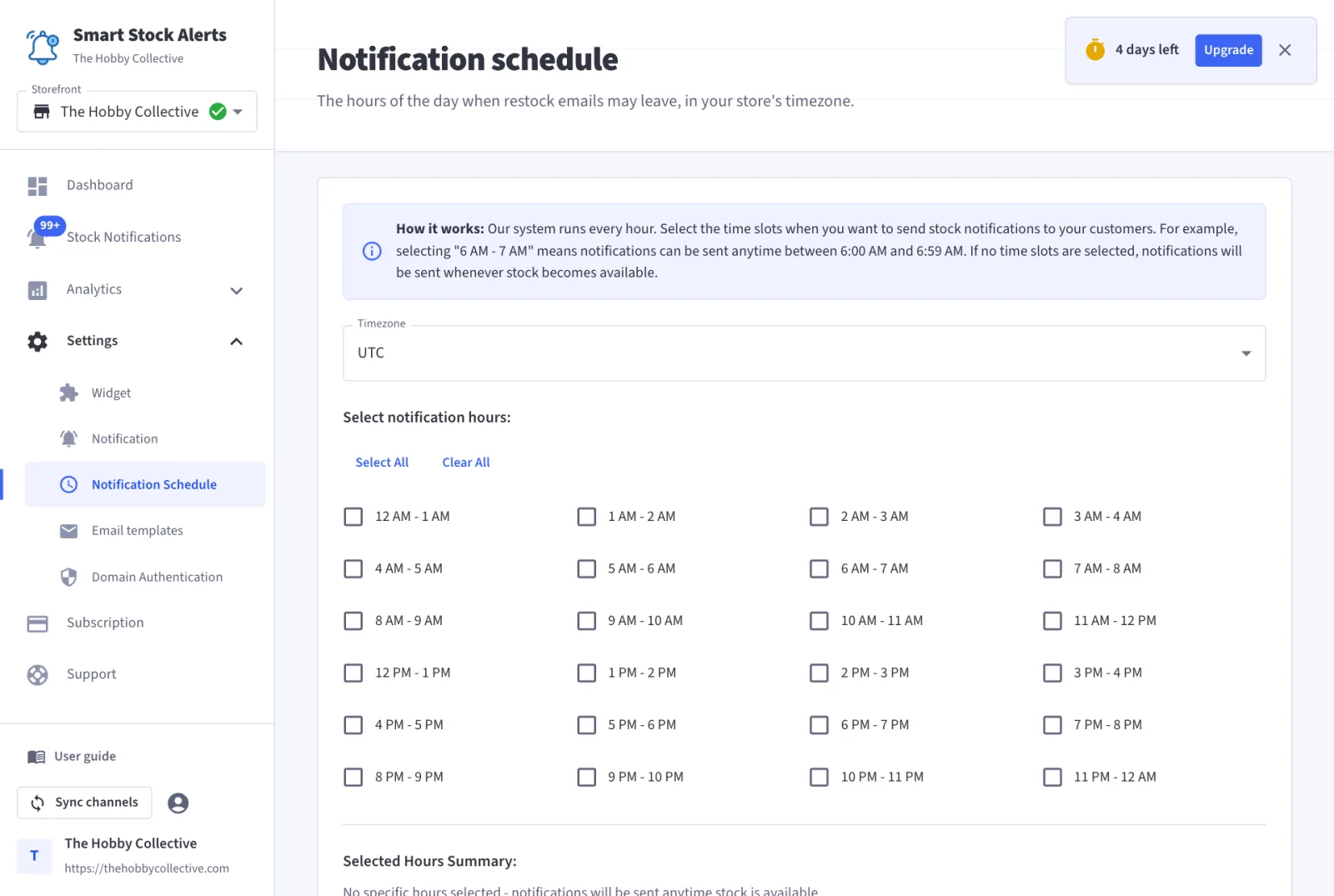
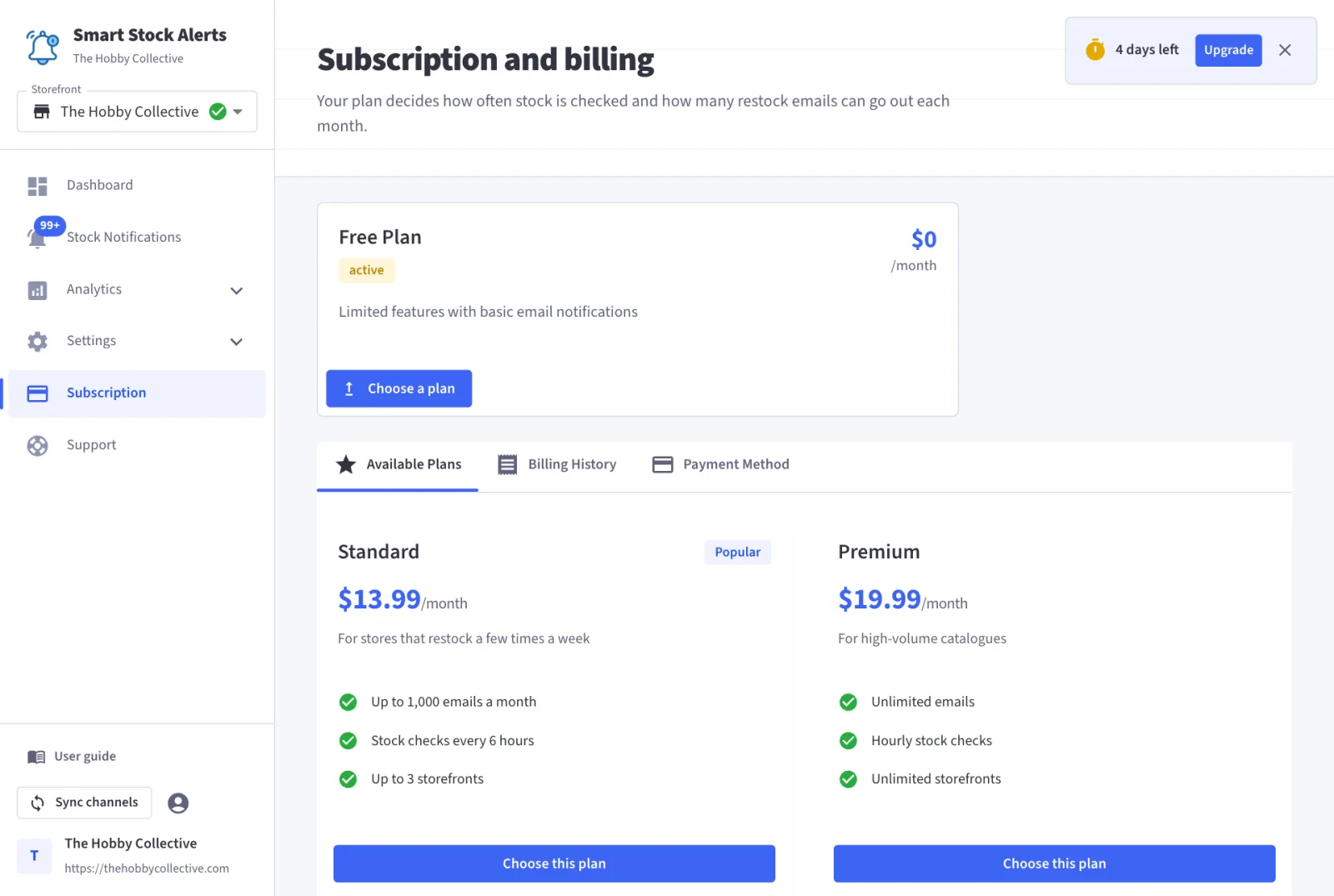
Settings, then Notification schedule. Pick your timezone and the hours of the day during which restock emails may be sent. Stock is still checked around the clock; a restock found at 3 am waits for the first allowed hour. Standard checks stock every 6 hours, Premium every hour, Enterprise every 15 minutes.
Your own sending domain
Settings, then Domain authentication. Add the domain of your From email, copy the three CNAME records the app gives you into the DNS of that domain, then click the refresh icon next to the domain to check. The app tells you which records it found and which are still missing. Once all three are live, emails are sent from your own address, signed with your domain.
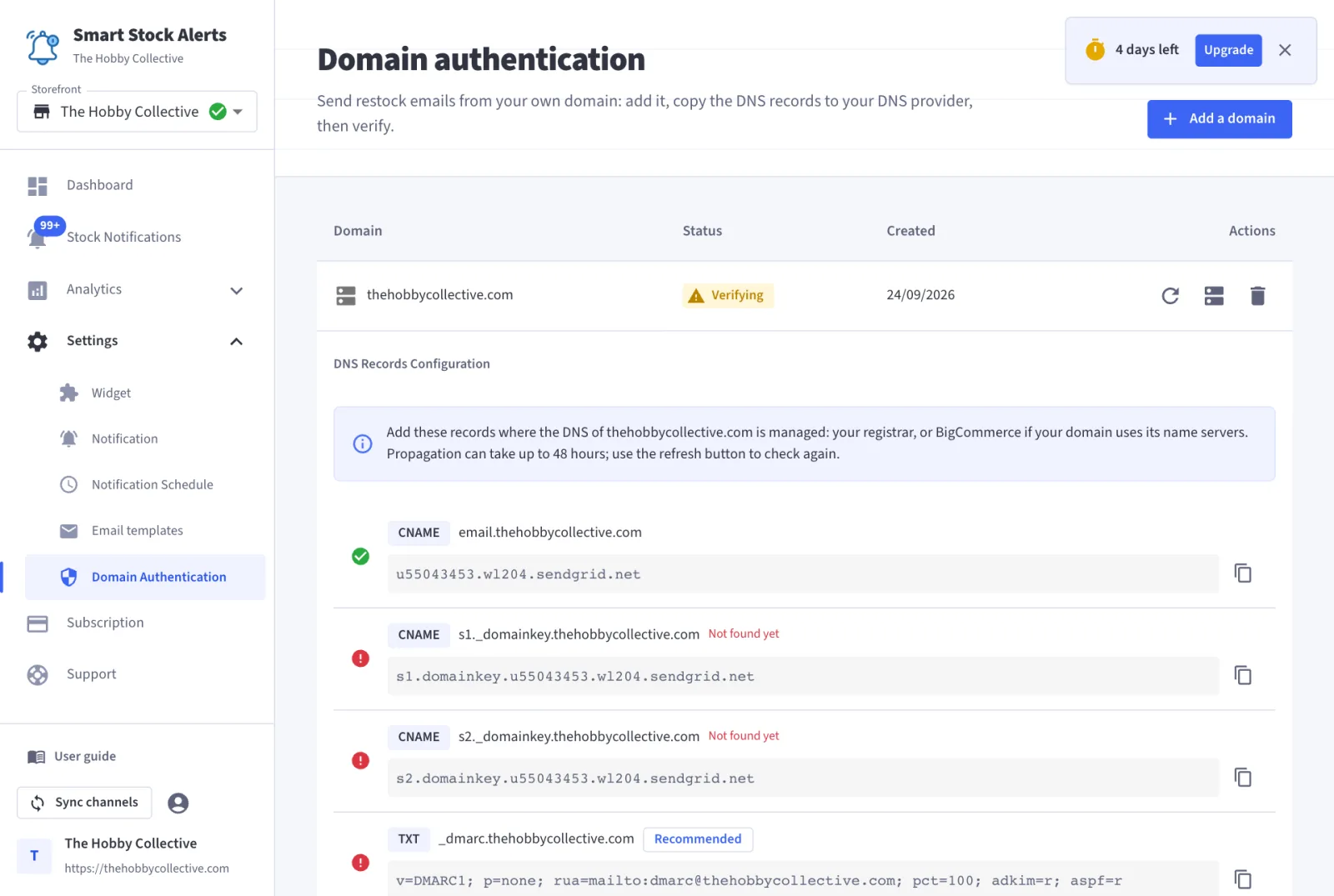
- The records go where the DNS of your domain is managed: your registrar, or BigCommerce if the domain uses its name servers.
- Propagation can take a few minutes to 48 hours. Check again later rather than re-adding the domain.
- Nothing breaks while you wait: emails keep going out from the shared address.
Email templates
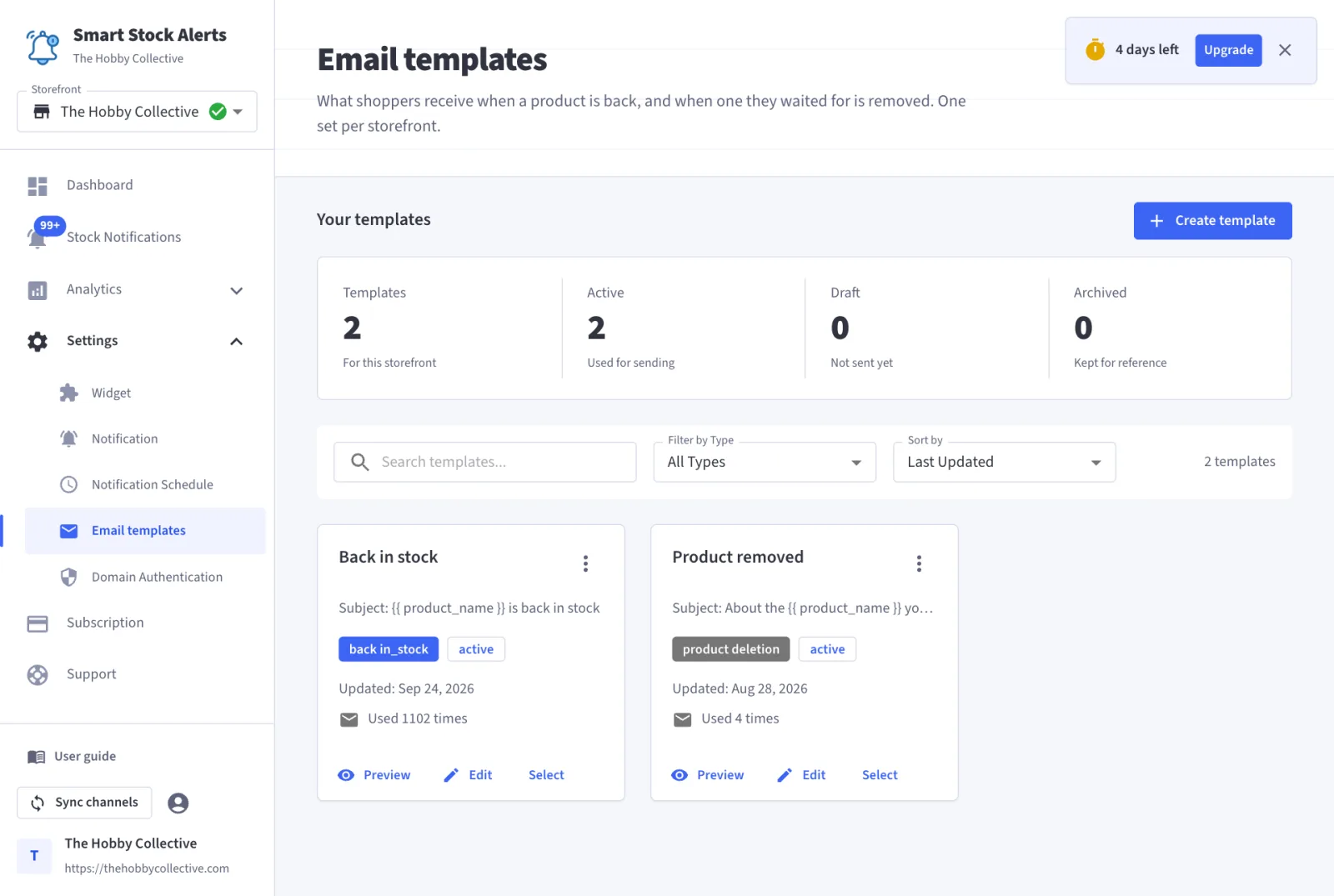
Settings, then Email templates. Each storefront has its own set.
Types
- Back in stock: sent when a product is restocked.
- Product removed: sent when a product waiting shoppers asked for is deleted from the catalogue, if you chose that option in Notification settings.
Shoppers also receive a short confirmation email when they sign up. Its wording is fixed and cannot be edited.
Variables
Write them as {{ name }}. Available in both templates:
{{ customer_name }},{{ customer_email }}{{ product_name }},{{ product_price }},{{ product_sku }},{{ product_description }}{{ product_url }},{{ product_image }}{{ shop_name }},{{ shop_url }},{{ shop_email }},{{ channel_name }}{{ notification_date }},{{ unsubscribe_url }}
The back-in-stock template can also use {{ stock_level }}. A block between {{#if product_image}} and {{/if}} is only rendered when the variable has a value.
Analytics and exports
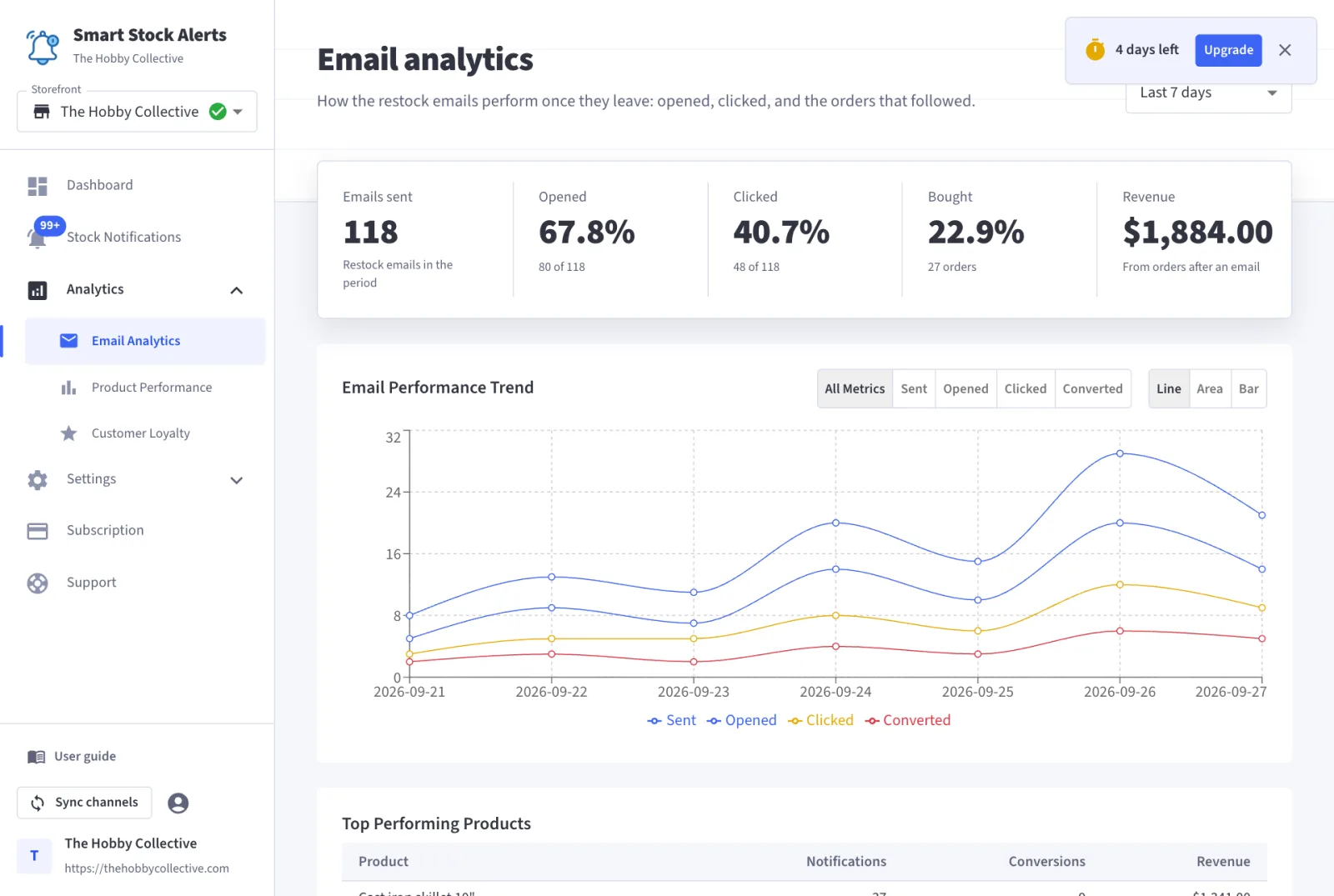
- Email analytics: emails sent, opened, clicked, orders that followed and their revenue, per day.
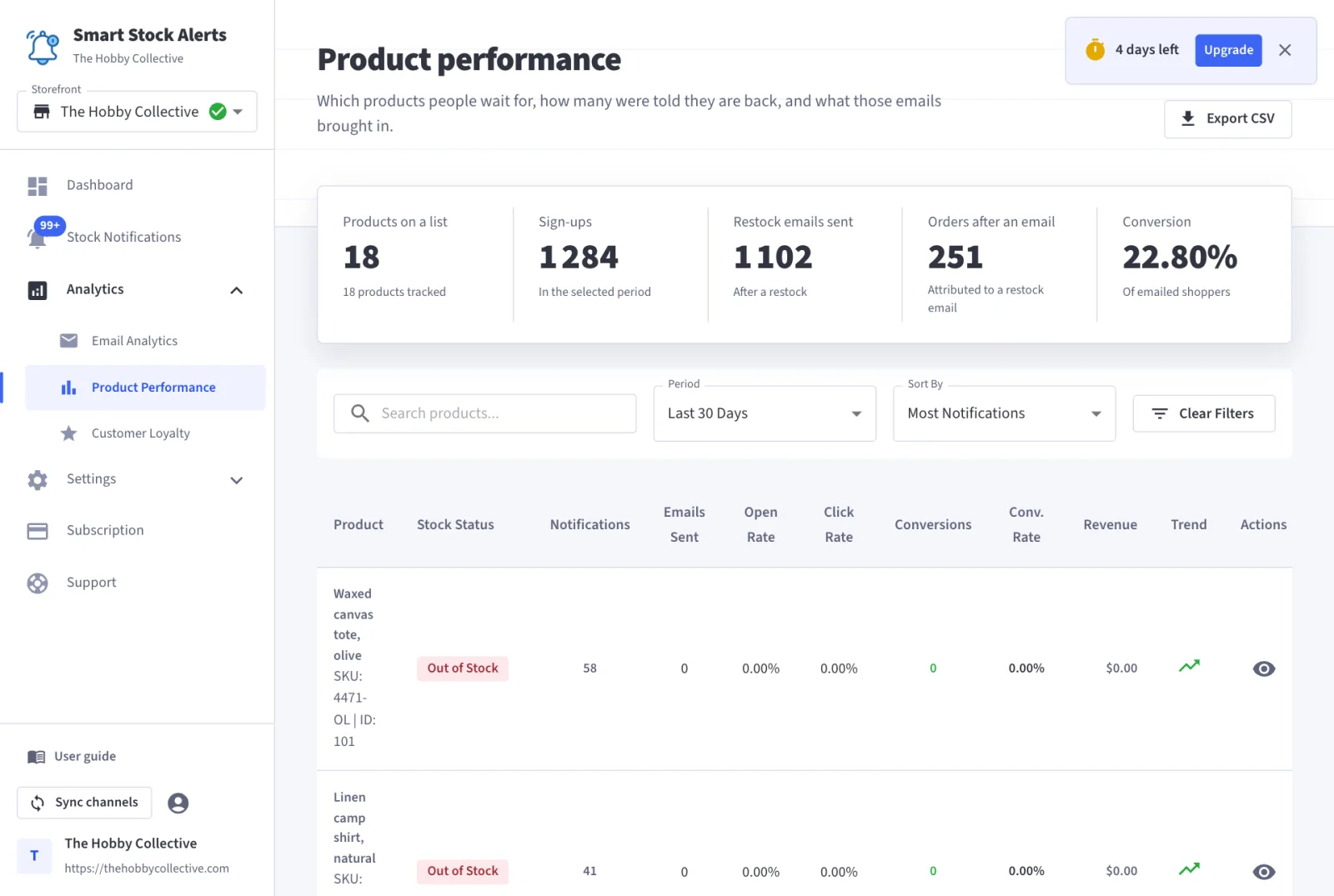
- Product performance: sign-ups, emails and conversions per product. Exports as CSV.
- Customer loyalty: shoppers who signed up and bought several times, with the revenue attributed to them. Repeat buyers are shoppers with three orders or more. Exports as CSV.
The dashboard and the stock notifications list export as CSV too.
Several storefronts
Each BigCommerce channel is managed separately: its own widget, sender, templates, sending hours and analytics. When your store has more than one storefront, a selector appears at the top of the left menu. If a storefront you created in BigCommerce is missing, use Sync channels at the bottom of the menu.
Subscription
The Subscription page shows your plan, the trial or billing period, and lets you change plan. When the trial or the plan ends, the widget stops taking sign-ups and emails stop going out; nothing is deleted, and everything resumes when the subscription is active again.
Troubleshooting
The widget does not show
- Check it is installed and enabled in Settings, then Widget, for that storefront.
- Check the product or variant really is out of stock in BigCommerce.
- Check the CSS selector exists on your product page; the default is the add-to-cart wrapper.
- Reload the page without cache.
Emails do not go out
- Check the subscription is active: sending pauses when the trial or plan ends.
- Check the sending hours: a restock outside them waits for the next allowed hour.
- Check the inventory rules: a minimum threshold or the inventory limit can hold emails back.
- Look at the failed sign-ups: hover the status to read the last error.
Emails come from the shared address
- Open Settings, then Domain authentication, and check the three DNS records are found.
- Check the From email is on that domain, not on a public provider.
Few orders after the emails
- Check the email lands on the product page, in stock, at the expected price.
- Look at the sending hours: a restock at 3 am can wait for the morning.
- Keep the email short: product, price, one button.